Title: How to configure scheduled internet access for an employee VLAN [Print this page] Author: pedrostins@gmai Time: 2026-11-6 04:17 Title: How to configure scheduled internet access for an employee VLAN Hello Support Team,
I need help configuring scheduled internet access on an [strong]EG105GW(T), running ReyeeOS 2.420.0.2127[/strong].
We have two Wi-Fi networks:
[strong]Employee Wi-Fi:[/strong] should use a separate VLAN with scheduled internet access.
[strong]Management Wi-Fi:[/strong] must have unrestricted internet access at all times.
The employee network must follow this schedule [strong]every day, including weekends[/strong], using [strong]UTC−4[/strong]:
Time
Internet access
07:00–11:00
Blocked
11:00–13:00
Allowed
13:00–17:30
Blocked
17:30–07:00
Allowed
Only internet access should be blocked. Internal services, cameras, wireless bridges and device management must remain operational.
Please clarify:
Does this model and firmware support this configuration? Which feature should we use?
How should we configure the VLAN and access rules to affect only the employee network?
How do we create the two daily blocking periods, with access restored exactly at 11:00 and 17:30?
Will the rules also stop existing connections, such as video streams and active applications?
What VLAN settings are required on the switches, wireless bridges and access points?
What is the recommended configuration order and rollback procedure?
Please provide step-by-step instructions with menu paths and example settings. You will not have remote access to the network.
Thank you. Author: v-jasonreyesrio Time: 2026-11-6 05:52
Hello,
You have 2 methods to restrict access based in a schedule, using the device model EG105GW(T).
First I will share with you the device manual: https://reyee.ruijie.com/en-global/support/documents/slide_ruijie-reyee-rg-eg-w-series-wireless-routers-reyeeos-2-380-configuration-guide/
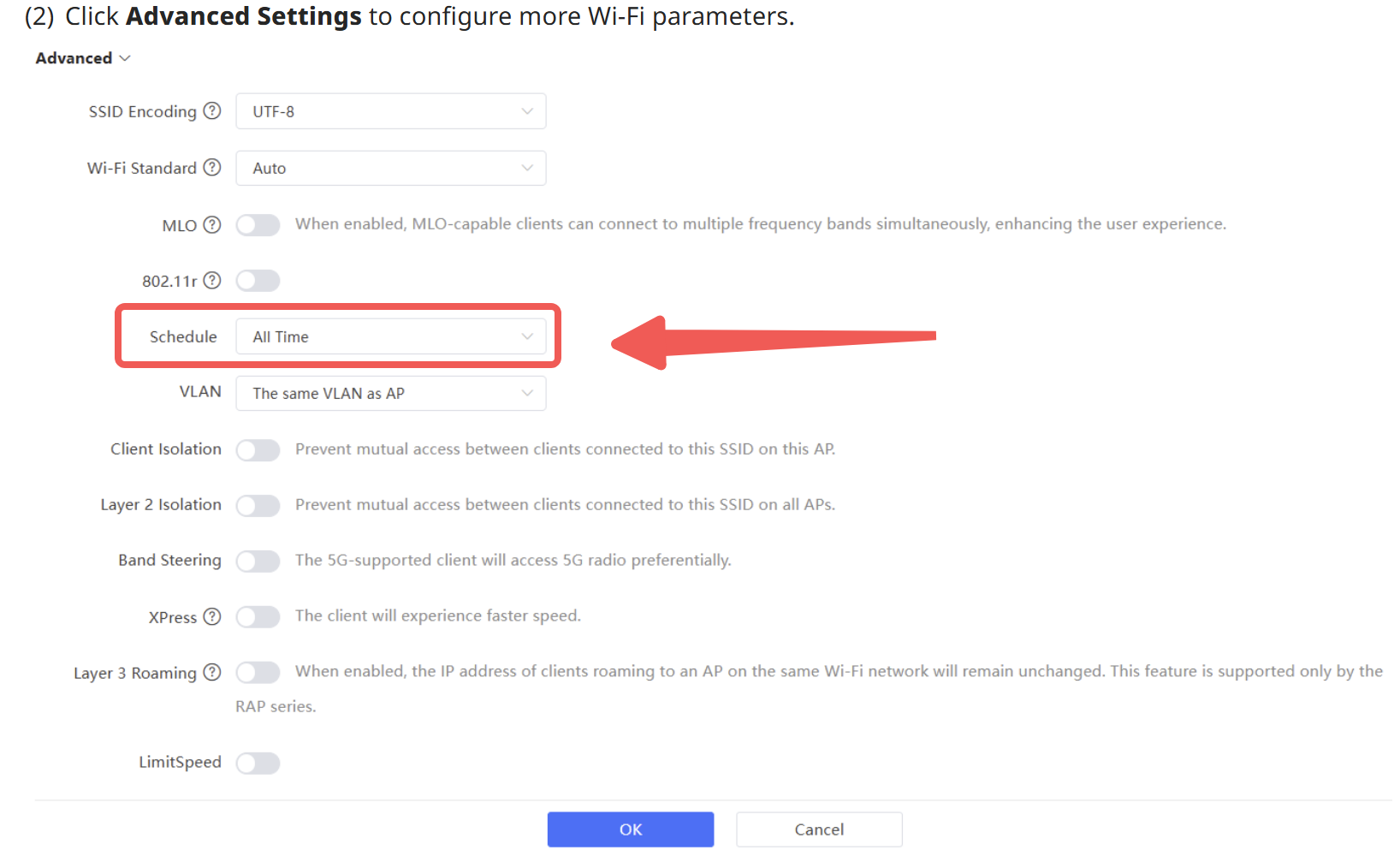
And now let me explain, if you are setting rules for WIFI only, then you can set time schedules per SSID, you can find more information in section: 5.2 Configuring Wi-Fi Network-Wide > Workspace > Wireless > Wi-Fi > Wi-Fi List.
You can set a custom schedule to fit your needs.
The second method is using Time Management and Access control features, you can see the information in sections:
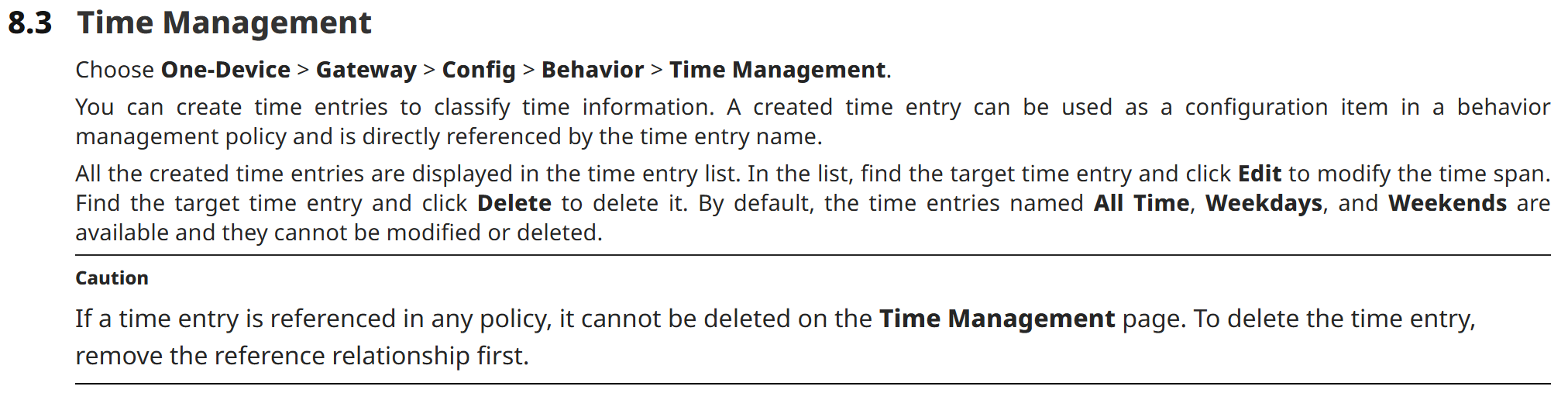
8.3 Time Management
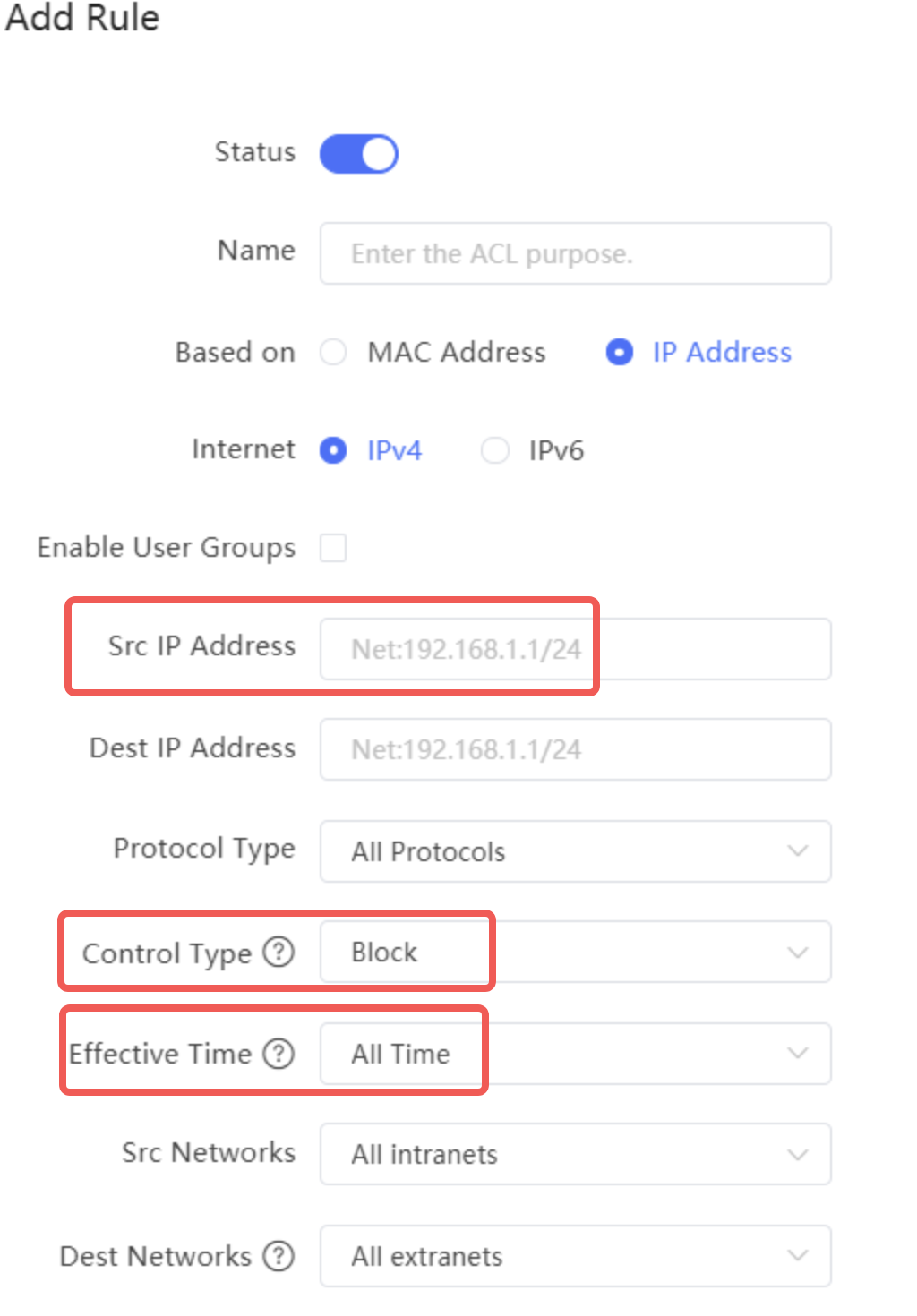
8.7 Access Control
You would need to create a Time list according to your requirements, either by day or by week
One-Device > Gateway > Config > Behavior > Time Management.
Then create a block rule for the IP segments (Source and destination) and bind with the schedule configured in the time list.
One-Device > Gateway > Config > Behavior > Access Control.
Note: All the above settings are configured connected to the device via eWeb or local connection (not from the cloud).
Based on your network requirement to block only internet access, then the best approach would be to use the second method (Access Control).
Best regards.
Welcome to Ruijie Community (https://community.ruijie.com/)