Unable to key in PSK / Password that contains the special character(s) (/%) & more 16 character On Model AP810-L
Reply
Unable to key in PSK / Password that contains the special character(s) (/%) & more 16 character On Model AP810-L
|
Dear All Support Team Ruijie & Reyee Good day to you All, I encounter a issue to Unable to key in PSK / Password that contains the special character(s) (/%) & more 16 character On Model AP810-L Error Pop up below t contains the special character(s) (/%). Upgrade all Reyee wireless devices to ReyeeOS 2.280 or later, or move Ruijie enterprise APs to another device group. Model AP810-L Firmware : AP_RGOS 11.9(6)W5B9P2, Release(13172023) Latest Please advice ! Thank you 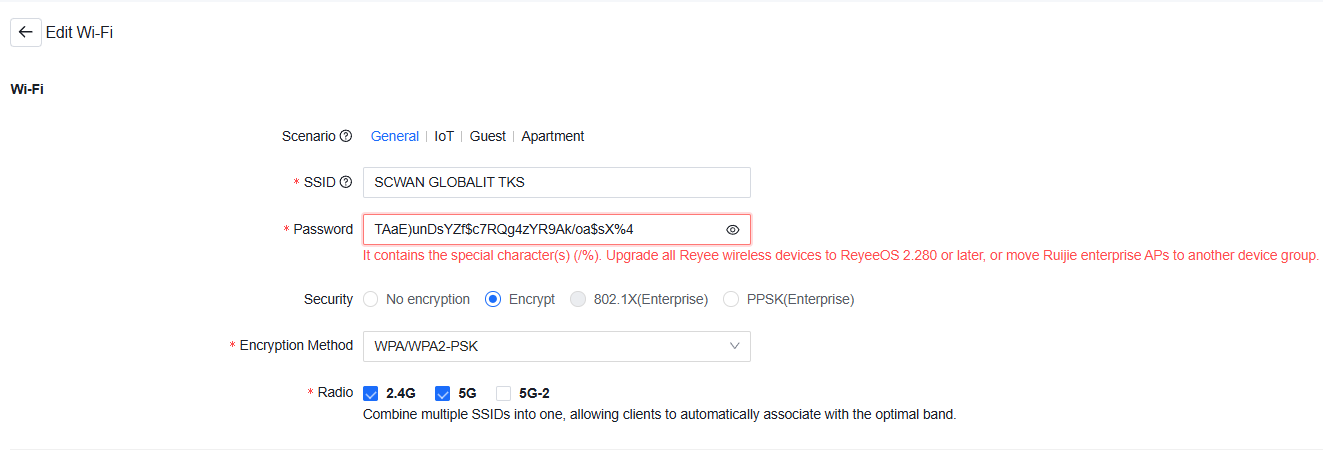 |
|
Edited by GTAC-Ryan at 2026-11-2 17:01 Dear customer, Ruijie Cloud does not support special characters including "/" and "%". If you need to configure special characters for an SSID on your Ruijie enterprise APs, you can configure it via CLI tasks. Here are the steps you can follow. 1. Find the WLAN ID of the target SSID via web cli: 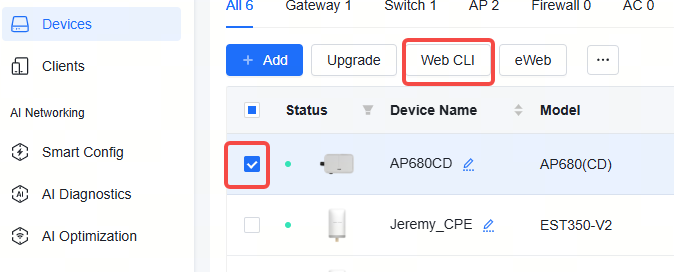 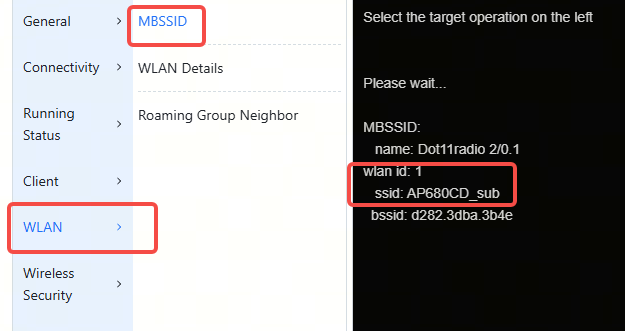 2. Add a CLI test in the "Device Config > CLI Config Task" page like the following one. wlansec 1 security rsn enable security rsn ciphers aes enable security rsn akm psk enable security rsn akm psk set-key ascii test1234%/ security wpa enable security wpa ciphers aes enable security wpa akm psk enable security wpa akm psk set-key ascii test1234%/ end wr The "wlansec 1" can be replaced with the actual WLAN ID. For example, if the WLAN ID of the SSID is 2, it can be replaced with "wlansec 2". The parameters behind "set-key ascii" is the password for the SSID. 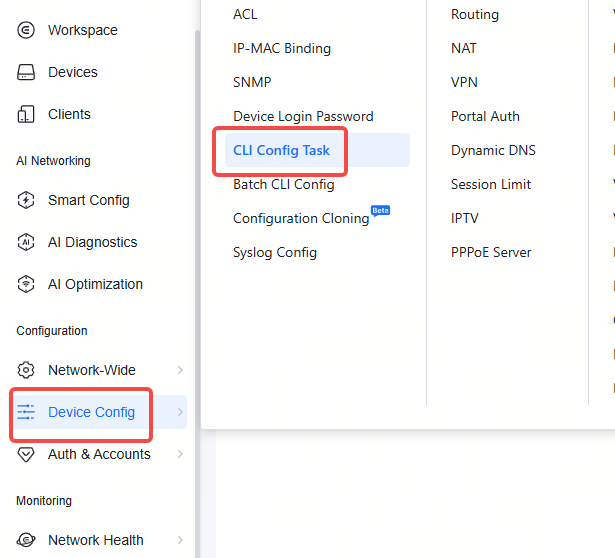 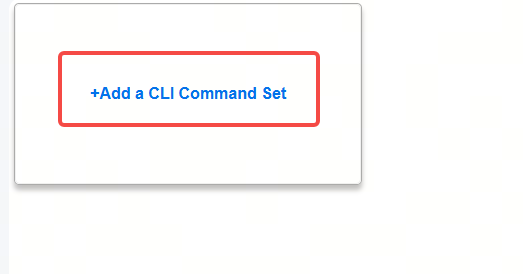 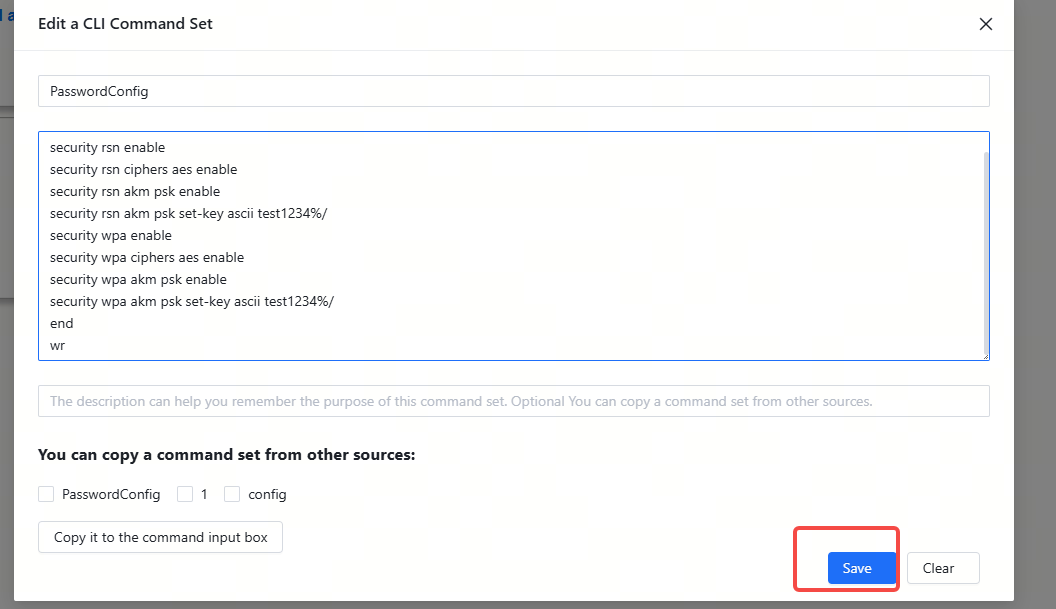 3. Once the CLI task is saved, navigate to Device Config > Batch CLI Config to initiate a CLI task 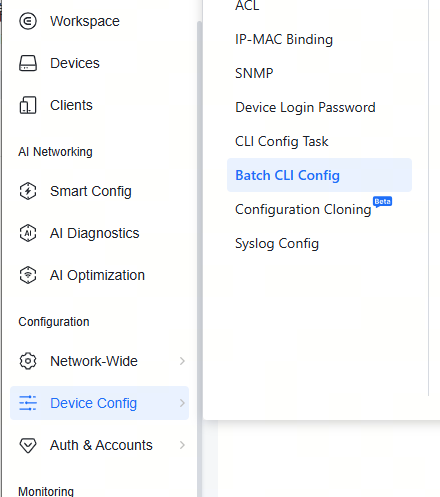 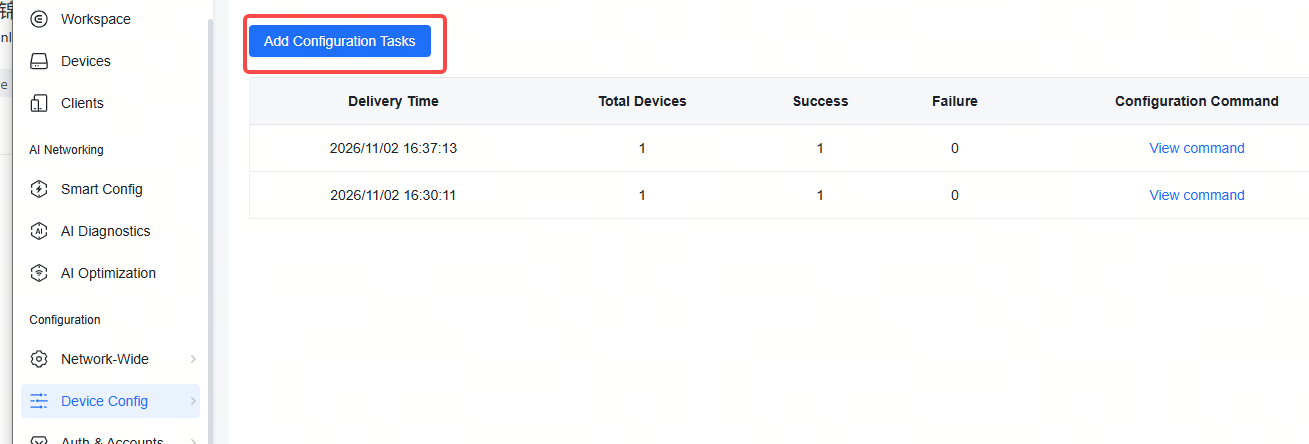 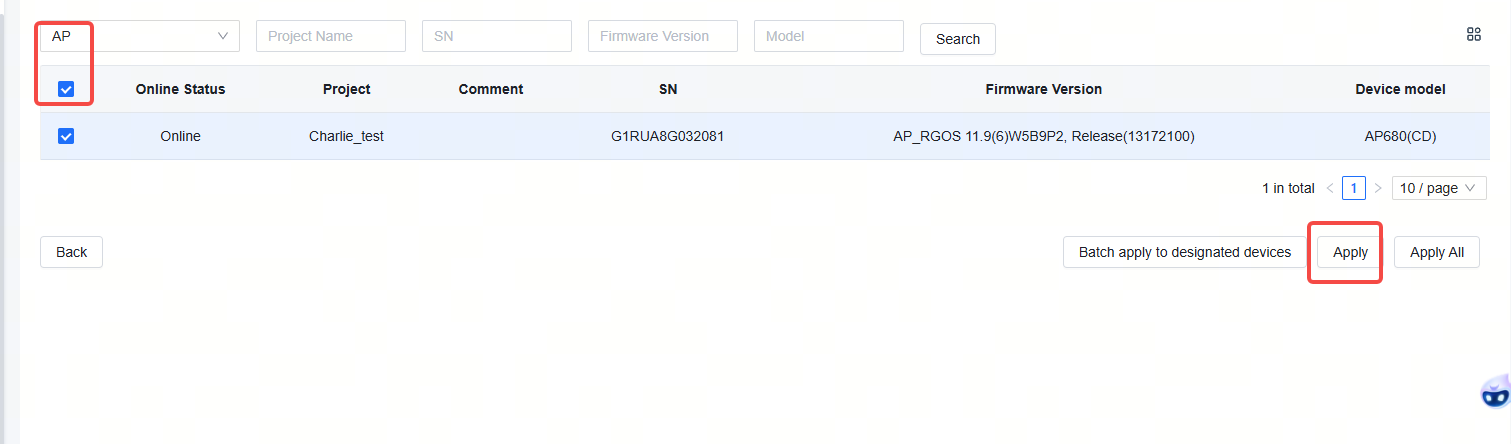 Toggle the CLI task you saved and copy it to thee command input box, then click "Deliver". 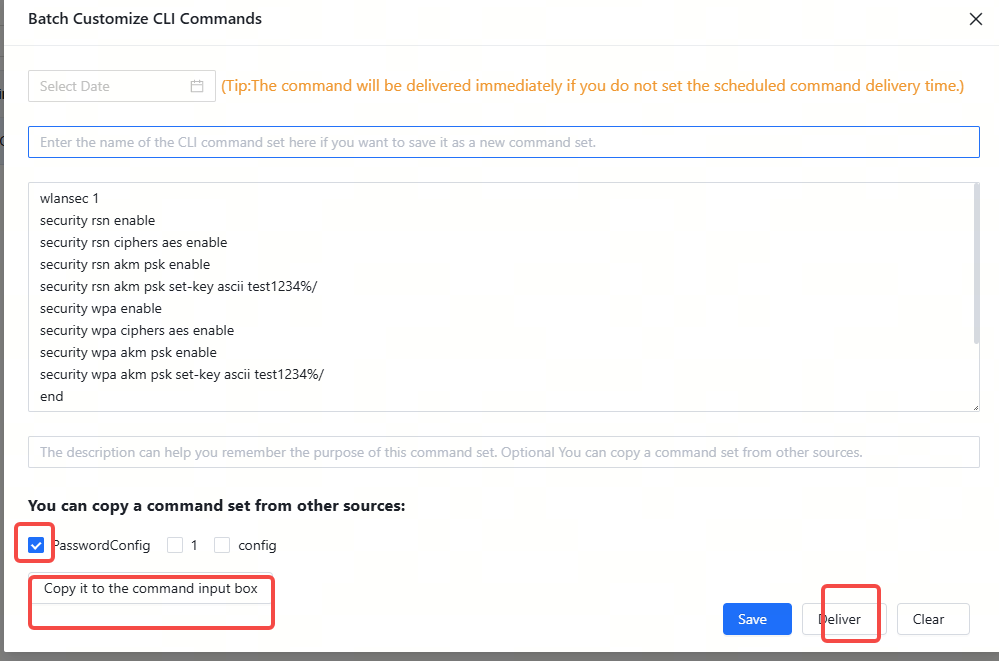 The configuation progress can be viewed in the "Log & Alarms > Config Log" page. 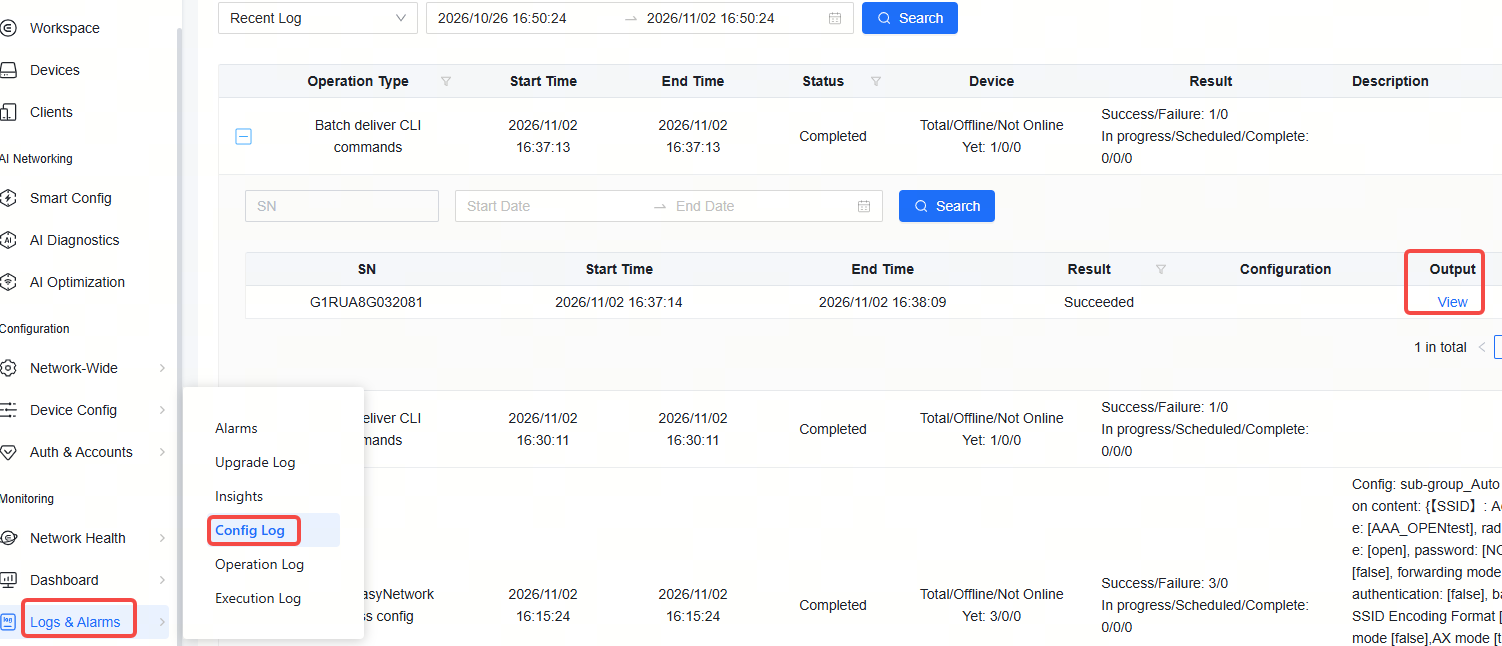 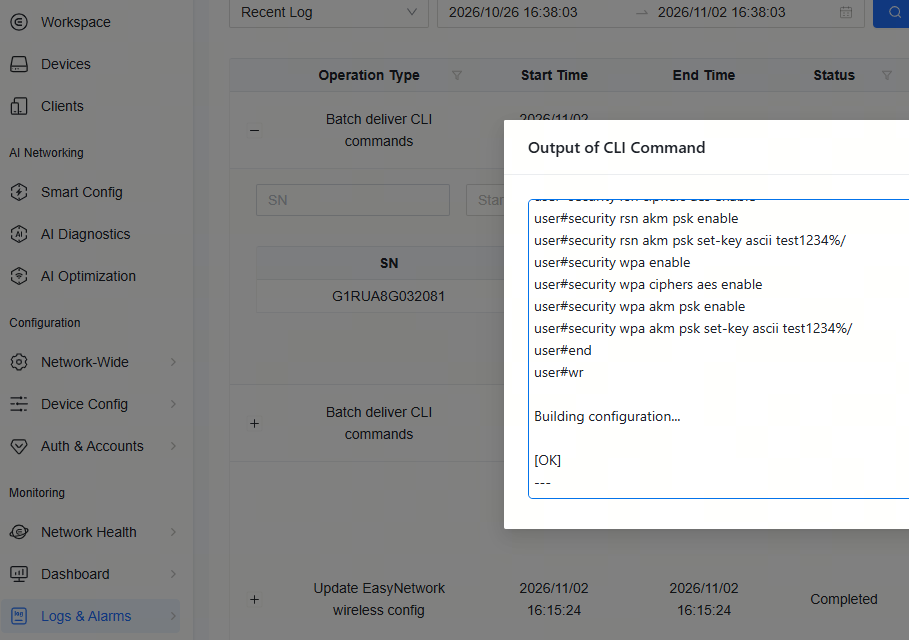 After the configuration is delivered, the cloud project won't display the password you configured. But you can view the password in the running config of your APs via web CLI. 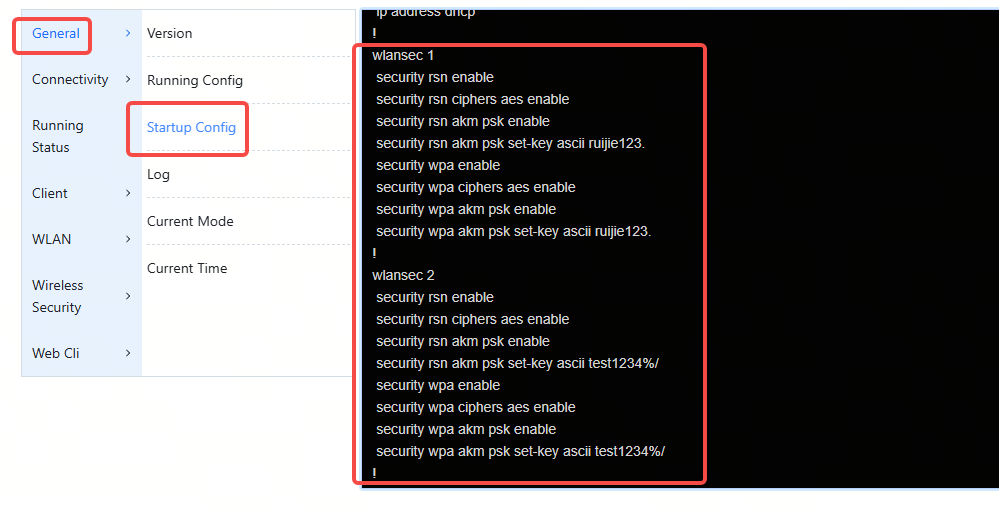 |
This site contains user submitted content, comments and opinions and is for informational purposes only. Ruijie may provide or recommend responses as a possible solution based on the information provided; every potential issue may involve several factors not detailed in the conversations captured in an electronic forum and Ruijie can therefore provide no guarantee as to the efficacy of any proposed solutions on the community forums. Ruijie disclaims any and all liability for the acts, omissions and conduct of any third parties in connection with or related to your use of the site. All postings and use of the content on this site are subject to the Ruijie Community Terms of Use.
More ways to get help: Visit Support Videos, call us via Service Hotline, Facebook or Live Chat.
©2000-2023 Ruijie Networks Co,Ltd


 Level 1